
Protecting Your Computer and Mobile Device

Even though we could all fall victim to a fraudster’s attempts to defraud us, there are ways we can help protect ourselves by safeguarding our computers and mobile devices. Here are some tips to help you protect your information when you are online.
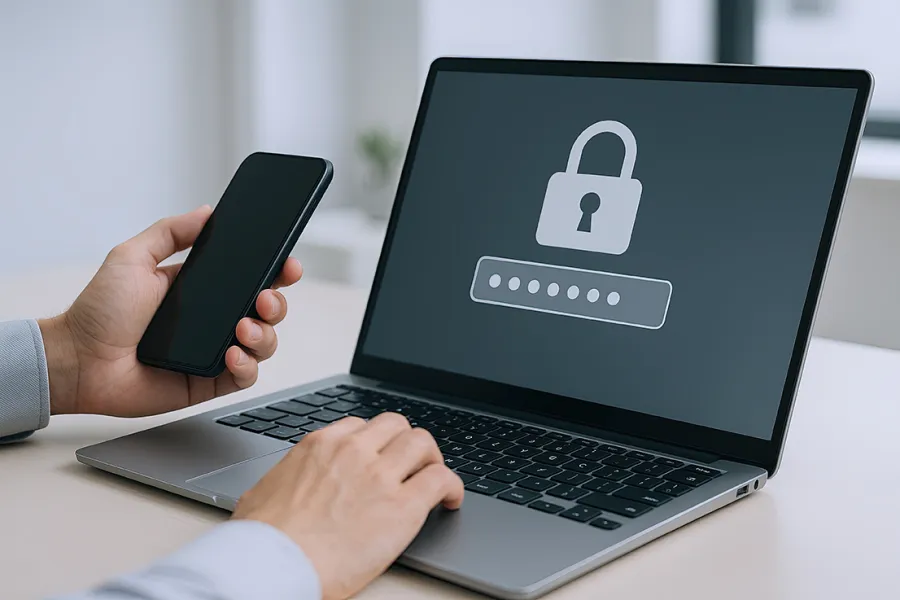
Cyber security.
Computer and Mobile Device Safety

Computer Safety

  • Securely store passwords with a password manager. This tool helps generate unique, complex passwords for each login you use, shielding them from potential hackers. Instead of remembering multiple user names and passwords, you only need to recall the login for your password manager, while the manager securely stores the rest.
  • Enable 2FA on accounts for an extra layer of protection.
  • Create strong and unique passwords that cannot be easily guessed. Passwords should be at least 14 characters and should be promptly changed if you become aware of a breach involving that password. Make passwords complex with various character types such as capital/lower case, numbers, and special characters. Don’t use PINs or passwords that are easy to guess, such as birth dates or spouse, child, or pet names.
  • Keep your computer operating system and browser up-to-date with the latest security updates. Also update third-party software such as Java and Adobe Flash Player. Set them to automatically update.
  • Install and use updated anti-virus/anti-malware protection software to prevent virus, malware, and spyware infections. Common programs include: Microsoft Security Essentials, McAfee VirusScan and Symantec Norton AntiVirus.
  • Install a personal firewall on your computer. A firewall works like a filter that prevents access to information on your computer. Windows computers have a firewall installed by default but be sure it is enabled.

Mobile Device Safety

  • Don’t click on links or attachments in unsolicited emails, especially those asking for personal information.
  • If someone calls and asks you for personal information, hang up and go directly to websites. The best way to get to any site is to type in the web address (URL) directly into your browser and then bookmark it. Be careful with your spelling.
  • Review your mobile phone security settings. Every device is unique, but the following should be common security settings for mobile devices (smartphones).
    • Enable encryption settings.
    • Set maximum ‘failed login attempts’ to lock out unauthorized activity.
    • Set device recovery, such as Find My iPhone, to make it possible to retrieve lost or stolen devices.
    • Update and backup your mobile device periodically. Your device operating system needs security updates as well.
Visiting Websites
  • Make sure you only conduct web-based transactions on a “secure” page.
  • Do not click on any unexpected pop-ups or advertisements when browsing. Close these pop-ups by clicking the “X” instead of clicking within the window or advertisement itself.
  • Review your browser security settings and set them to a high enough level to help detect unauthorized downloads. (Click your browser’s “Help” menu for steps).
Email
  • Look at who the email is coming from and make sure there are no misspellings.
  • If you aren’t expecting an email from someone and they are asking for personal information or a payment, contact them directly.
  • Don’t click on links or attachments in unsolicited emails.
Social Media
  • Don’t announce your travel plans. This alerts fraudsters that you are away from home, allowing them time to get into your home or even catch you off-guard. They could call you with a fabricated emergency, misleading you to give them personal information.
  • When you get a new job, share the news with your friends, but don’t post your new ID or anything that will share any personal information.
Secure Your Internet Connection
  • Use a secure Wi-Fi network; avoid public Wi-Fi or use a VPN when necessary.
  • Change default router passwords and enable encryption settings.
  • Disable automatic connection to unknown networks.

Notices & Disclosures